Changelog · September 21, 2026
What's new: VST plugins, Splice in the chat, and sharper ears
Two weeks since the last update. The short version: Dawbrain can control your VST plugins now, Splice is a sentence away, it hears far more in a sample than it did, and it moves clips around the Arrangement without you touching the mouse.
VST plugins, from the chat
Until now, everything Dawbrain dialed in was a Live device. It could load your Serum preset, but it could not reach inside and open the filter. That changes today.
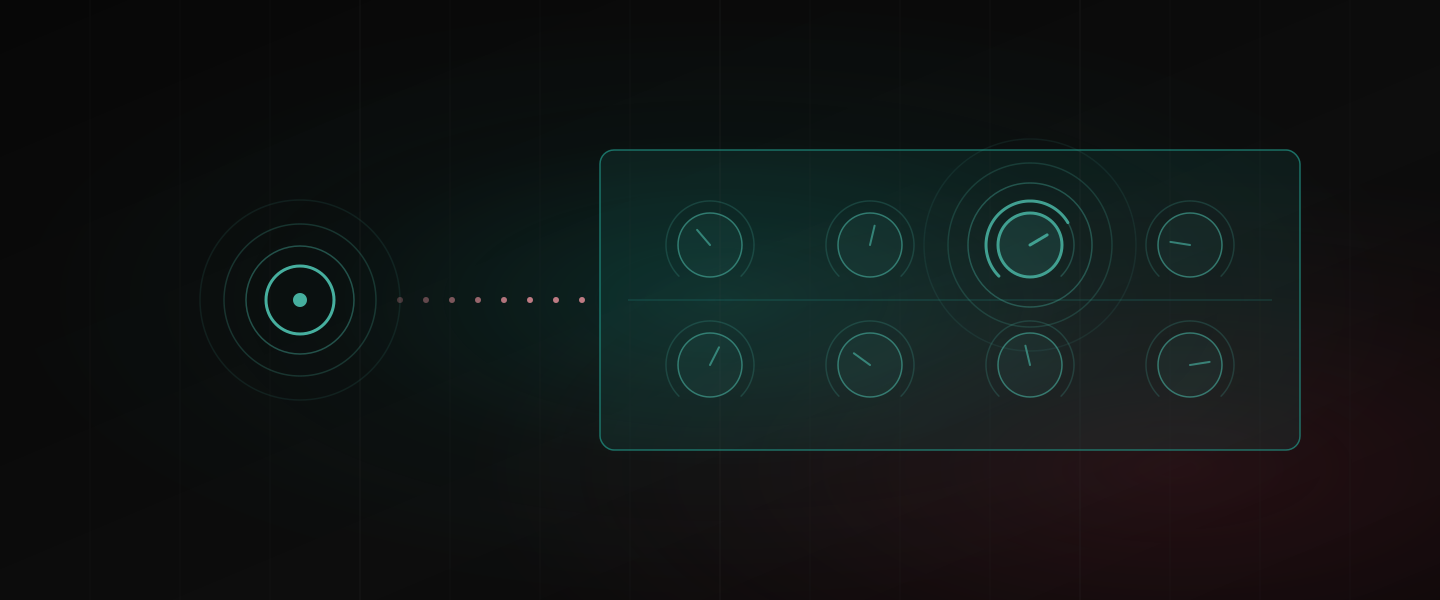
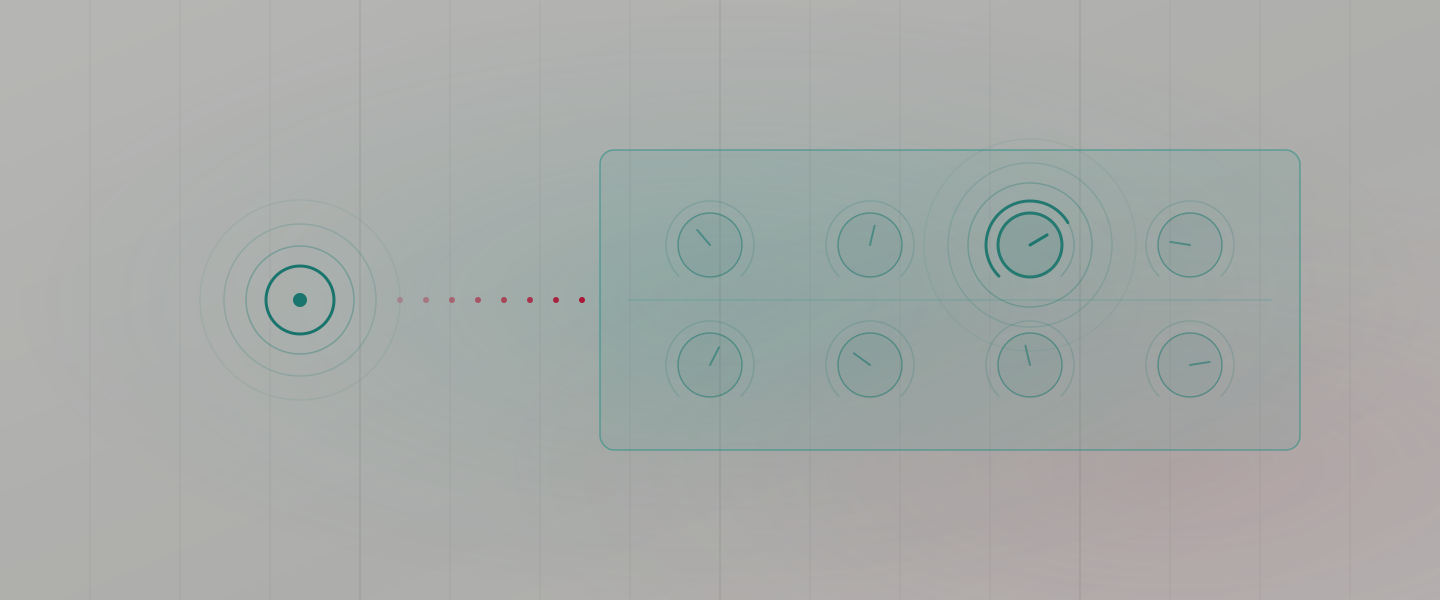
Say “open the filter on Serum” and it opens. Serum 2, Vital and Surge XT work out of the box. Every control Dawbrain touches reads back in the plugin’s own units, so “set the cutoff to 900 Hz” means 900 Hz, and every control it sets stays automatable, mappable to a macro or a MIDI knob, and saved with your Set. A Set you build this way keeps working on a machine without Dawbrain.
Any other VST3 plugin you own works the same way after a one-time preparation. The first time you ask, Dawbrain asks your permission and takes a couple of minutes to get the plugin ready. It costs no credits and you can keep working. From then on that plugin is one you can talk to.
A few limits worth knowing. It is VST3 only for now. The plugin starts from its initial state rather than a preset you saved; loading your own sounds into it is next. And a plugin you already have on a track stays as it is, so ask Dawbrain to load it when you want to control it.
Splice, without leaving the chat
Describe the sound your library does not have, and Dawbrain searches Splice for it. You get the hits with pack, BPM and key, you name the one you want, and it lands on the track you said. Your Splice account and your Splice credits; Dawbrain does the searching and the placing. Connect it once under Account. The full post has the details.
Sharper ears
Dawbrain reads the audio itself when it picks a sample, and it now hears a lot more in the file:
- Loudness. “The loudest of these” and “which one will peak over 0 dB” are measured, not guessed.
- Root note. A tonal one-shot comes back with its pitch, so “a punchy kick in E” and “a bass hit that matches the track” mean what you think they mean.
- What the file has been through. Signs that a sample was once an MP3, fake stereo width and a low end that is not mono show up before the sample is on a track.
- Shape. “Something snappier than this” and “tighter, less boomy” are comparisons Dawbrain can actually make.
- Warped clips. A warped clip’s hits and lead silence are reported in its own beats, so chops and slices land on the grid you hear.
Move clips around the Arrangement
“Push the second chorus back four bars” or “bring the breakdown forward” moves Arrangement clips in one step, across as many tracks as you name. Dawbrain will not drop a clip onto one that is already there; it tells you what is in the way instead of overwriting it. Deleting works the same way, in a batch, with a check before it removes more than a handful of clips at once.
Undo, one step per message
Undo now means one thing: one undo reverts everything Dawbrain did in reply to one message, and no more. Dawbrain will not chain undos on its own, and a rework that fails halfway normally leaves you with the part you had.
Also shipped
- Building a track from nothing takes fewer steps, so a full build is quicker and costs fewer credits.
- A new chat layout, with a collapsible sidebar and search across your chats.
- The status popover shows which version you are on, and tells you when an update is waiting on a Live restart.
- Send feedback without leaving the app: it is in the account menu.
- The Windows installer is signed, and there is a native build for Intel Macs.
Dawbrain is free to start: 150 credits, no card, no expiry date. Install it and tell us what you think at info@dawbrain.com.