Blog · September 16, 2026
Search Splice in chat, land it in Ableton
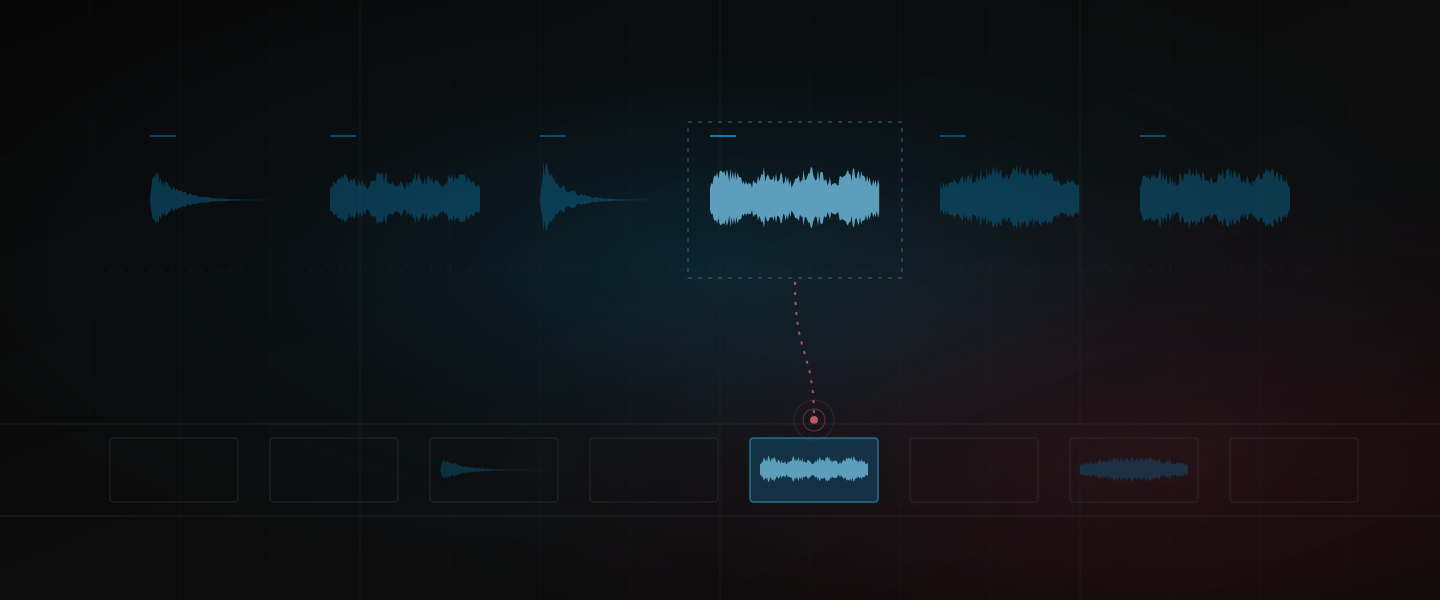
Dawbrain now searches Splice from the chat. Describe the sound, get the hits with pack, BPM and key, name the one you want, and it lands on the track you said in your Set. No tab switch, no download folder, no drag.
It is your Splice account and your Splice credits; Dawbrain does the searching and the placing. Connect it once and it is there for the sound your own library does not have.
Connect Splice once
Open Account in the Dawbrain app, pick Splice, and press Connect Splice. You sign in on splice.com, approve the connection, and land back in the app with a Connected status. Disconnect is on the same page whenever you want it gone.
Searching needs a Splice account. Downloading needs a Splice plan that includes downloads, and it spends your Splice credits, one per new sample. Dawbrain says so before it loads anything.
Ask for the sound you do not own
Find me a punchy analog kick one-shot on Splice.
A dark techno bass loop, 126 to 130 BPM.
Dawbrain searches the Splice catalogue and lists the hits: the file name, the pack, the BPM and key where Splice knows them, the length, whether it is a loop or a one-shot, and Splice’s tags. Put a tempo range or “loop” or “one-shot” in the request and the search narrows to match. Ask for a kick, a snare and a hat in one message and it runs the three searches at once.
Each hit comes with its splice.com link, and that is where you listen. The chat panel does not play Splice previews yet: open the link, audition, come back and pick.
Pick one and say where it goes
Load the second one onto the Drums track.
Name the hit and it downloads and lands in your Set. Loops and one-shots go to a clip slot on the track you named, or on a new audio track if you did not name one. Ask for the Arrangement at bar 17 and that is where it lands. Placement works the same way as generated audio: say the destination in the request and Dawbrain skips the question.
The sample keeps Splice’s file name, so the clip you see in Live is the one you picked from the list.
Dawbrain only downloads a sample you asked it to load, never to audition and never a batch on its own initiative. A download spends one Splice credit the first time and none on later downloads of the same sample, and the chat says which it was.
What if Live is somewhere else by then
The download starts the moment you ask. If the Set you asked from is still open, the clip is placed straight away. If you have switched Sets or quit Live, the file is downloaded and waiting; say “place it” in chat and it goes into the Set that is open now.
Either way the file is saved as a regular audio file under Dawbrain in your Music folder, next to your generated audio. Collect All and Save copies it into the project like any other external sample.
Your library comes first
Ask for a kick and Dawbrain still searches what you own first, and ranks the candidates by how they sound. It goes to Splice when you say so, or when your library has nothing that fits. Say “on Splice” in the request to skip the library pass.
What it costs
A Splice search and a Splice download are ordinary steps of work in the chat, so they cost credits the way any other step does. The sample itself costs nothing extra on the Dawbrain side. Splice’s side is Splice’s: its plan gates downloads and its credits pay for them.
Splice search works on every Dawbrain plan, including Free.
Where it is rough
Splice’s search is Splice’s. Ask for an analog kick and the top ten can carry a few snares. The tags and the pack name are there in the list so you can tell before you spend a credit, and a second, more specific request usually sorts it out.
No previews in the chat. Until Splice offers one to apps, auditioning means the splice.com link.
Splice’s connection for apps is new, and it can change under us. If a search comes back empty or odd, tell us; we would rather know.
Try it
Dawbrain is free to start: 120 credits, no card, no expiry date. It works with Ableton Live 12 on macOS and Windows, Intro through Suite. Install Dawbrain, connect Splice from Account, and tell us how it went at info@dawbrain.com.