Blog · November 5, 2026
Audio to MIDI in Ableton: rebuild a song
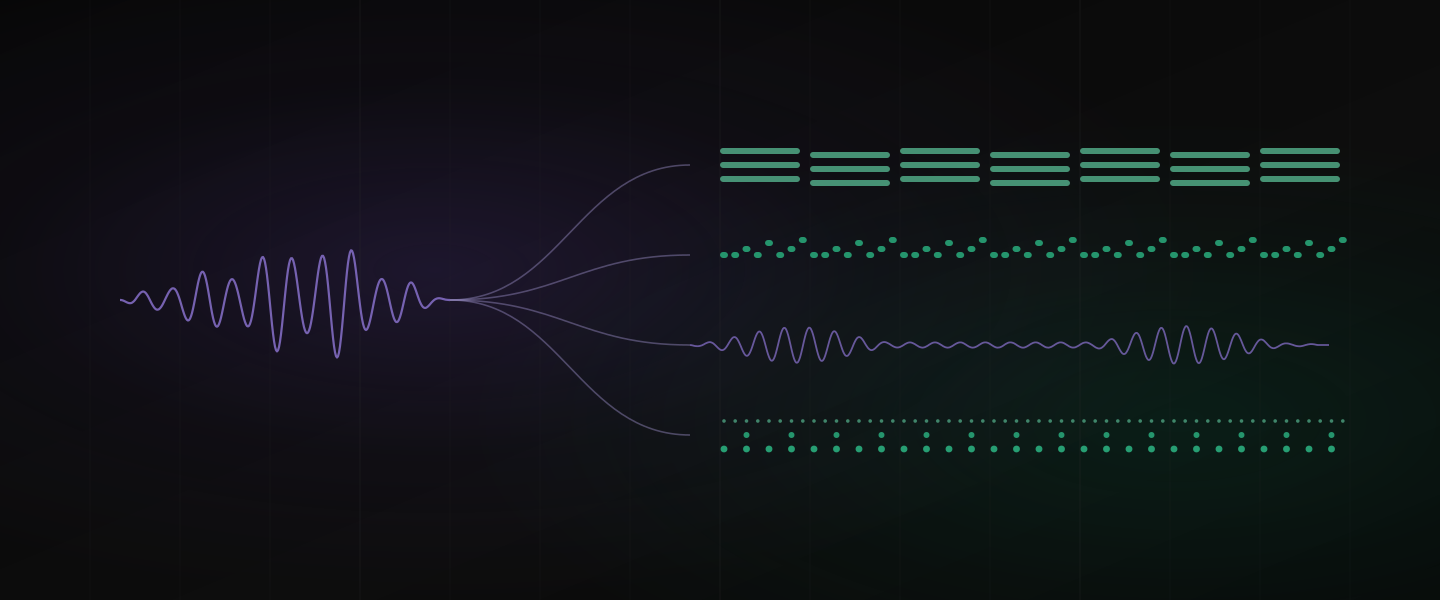
A finished song is the hardest material to learn from. The chords sit under the vocal, the bassline hides behind the kick, and the drums are glued to everything else. Working it out by ear takes an evening. Remaking it so you can change the sounds takes another.
Dawbrain now does both halves in Live. It splits an audio clip into stems, then turns the parts you want into MIDI clips you can edit note by note: the chords, the bassline, a melody or vocal line, and the beat. Ask for one part, or ask for the whole song back as MIDI.
One request, one rebuilt song
In our demo, with a one-minute mixed song selected in the Arrangement, the whole job was one message:
Rebuild the selected clip as MIDI (drums, bass, chords), check the MIDI against the original and fix any missing or wrong notes, and keep only the vocals. Pick similar sounds from my library, balance the levels so nothing clips, delete the leftover stems, then loop the whole song and play it.
Before: one mixed song
A request that size is a job, not a single step, so Dawbrain lays it out as a plan in three parts with a credit estimate for each, and waits for you to start it. Each part runs when you press Next part, so you can listen in between and change course.
Rebuild song as MIDI, keep vocals
Part 1 of 3 is next · about 140 credits
- Separate stems and transcribe to MIDI
- Sounds and level balance
- Cleanup, loop and play
The plan: three parts, one at a time
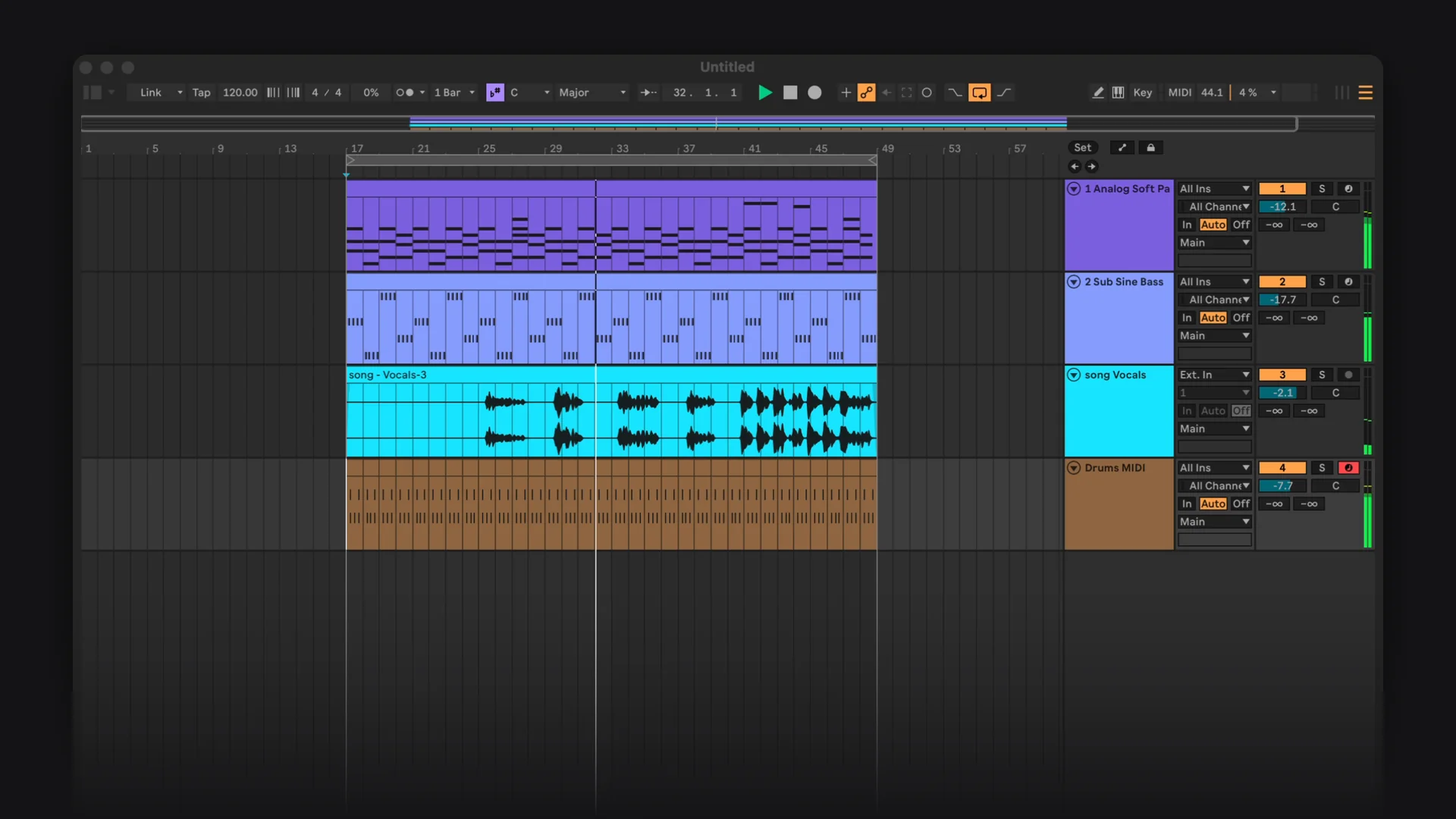
Part one split the song into four stems. Part two read the chords (Em, C, G, D, every bar), wrote them as a MIDI clip on FM Piano Classic, wrote the bassline on Sub Sine Bass, and rebuilt the beat on a Drum Rack loaded with 808 samples from the library. It set the levels so the Main track stopped clipping. Part three deleted the stems nobody needed, kept the vocal, set the loop around the song and pressed play.
Midway: four stems and the new MIDI
The piano was not quite the sound of the original, so one more message, “replace the sound on track 1 to pads similar to the source song”, swapped it for Analog Soft Pad and set its level again. From the first message to the finished loop took under six minutes. Watch the whole session, sped up only while Dawbrain works:
A plain conversion needs no plan at all. Select a song and ask:
Convert the selected clip to MIDI with similar sounds from my library.
One message does it. Dawbrain splits the song, writes the drums, bass and chords as MIDI on sounds from your library, mutes the stems it transcribed and keeps the vocal playing as audio. It turns the vocal into MIDI only when you ask for that.
You rarely need even that much. Each piece of the job works on its own.
Split a track into stems
Split the selected clip into stems.
Dawbrain separates the audio into drums, bass, vocals and other, and puts each stem on its own new track, lined up with the original. The original clip is turned off, the way Live’s own separation leaves it, so nothing plays twice. Ask for less and you get less: “just pull out the vocals” places only the vocal stem and leaves the original playing.
It works on Arrangement and Session clips, on the whole clip or a stretch of it, and on up to an hour of audio. Separation runs on your computer. A short one finishes inside the reply, and Stop ends it like any other request: in our demo, on a Mac, a one-minute song took seconds. When a separation will take longer than a minute, Dawbrain tells you the estimate and asks before it starts. One that will take more than about five minutes runs in the background, so you can keep working, or stop it with Cancel. When it is done, press Continue and Dawbrain carries on with the rest of your request.
You need a computer with at least 8 GB of memory. The first time, Dawbrain downloads what separation needs, also in the background.
Stems also sharpen the answers to questions about a mix. Ask what the bass is doing in the second verse, or why the low end feels crowded, and Dawbrain uses the stems when the track has them, and offers to separate it when it hasn’t.
Turn audio into MIDI
Transcribe the bassline from this loop to a new MIDI track.
Point Dawbrain at an audio clip in your Set, or at a sample in your library, and say which part you want:
- Bassline: the lowest line, one note at a time.
- Chords: held blocks that change with the harmony, with the melody passing over them left out.
- Melody or vocal line: the top line. A sung phrase stays one note through vibrato and slides instead of breaking into a dozen.
- Everything: every note it hears, for a pad, a keys part or a guitar figure.
The notes land in a MIDI clip on the track you name, at the timing they were played. A warped clip’s notes follow its warp markers, so they sit where the audio sits on your grid. They are left unquantized unless you ask: “snap it to 16ths” puts them on the grid.
If the result is too busy or too sparse, say so. “Try that again with fewer notes” clears out stray and ghost notes, and “it’s missing notes, try again” hears more. That is usually faster than fixing the clip by hand.
A full mix is the hardest thing to transcribe, because every instrument is in it. Ask for the bassline of a mixed song and Dawbrain tells you that separating it first will likely give cleaner notes, and how long that takes. Say yes and it separates, then transcribes from the right stem: the bass from the bass stem, the chords from the other stem, the melody from the vocal.
Find the key and chords
What are the chords in this track?
Dawbrain reads the chords bar by bar from the audio, and the key with how sure it is. When a passage sits between a major key and its relative minor, or a bar names no clear chord, it says so instead of guessing. Then ask for a part that fits: “write a bassline that follows these chords” moves with the harmony it just read.
Copy a drum pattern from audio
Copy the drum pattern from bars 17 to 24 onto a Drum Rack.
Dawbrain reads the hits in a drum loop or a drum stem as kick, snare or clap, and hats, and writes them as MIDI on a Drum Rack, with velocities that follow how hard each hit was. Pick the bars you want, up to 16 at a time. It snaps a hit to the grid only when it was close to the grid already, so swing and triplet feels keep their feel.
This one is a rebuild of the pattern, not a full transcription of the kit, and Dawbrain tells you what looks off:
- Toms and percussion land in whichever of the three parts their sound is closest to. Open and closed hats both come back as hats, and a clap and a snare as one.
- From a full mix the hits blur together, so Dawbrain offers to separate the drums first.
- What it writes is the groove, not a performance. In our demo it heard a four-on-the-floor kick with a backbeat snare and wrote one bar of it across the song. Fills and variations are yours to add, or to ask for.
Getting a good result
A few words in the request save a round of corrections.
Ask for stems up front
Ask for one part of a full mix and Dawbrain stops to offer a separation first. If you already know you want stems, say so and it goes straight through:
Split this clip into stems, then transcribe the bassline and the chords.
Say what correct means
Ask Dawbrain to check its work against the original and it takes another pass at a part that comes back thin or wrong:
Check the MIDI against the original and fix any missing or wrong notes.
Ask for the whole groove
A drum rebuild gives you the core pattern. Name the bars to copy and anything else you want on top of it:
Copy the groove from bars 17 to 24, include the hats, and add a fill before bar 33.
Give a sample’s tempo
For an unwarped loop or a sample from your library, the tempo puts the notes in the right place on the grid:
This loop is 92 BPM. Transcribe its melody to a new MIDI track.
Where it is rough
- Pitch bends are not written, so slides and 808 glides come back as plain notes.
- Bright sounds can add quiet ghost notes an octave up. Asking for the bassline or the melody, rather than everything, filters most of them out.
- Chords come back as block chords on the beat. A strummed or arpeggiated part gives you the harmony, not the rhythm of the playing.
- Separation is cleanest on a clear mix. On dense or heavily distorted material, some of one instrument can bleed into another stem.
How it compares with Live’s own tools
Live has had Convert Melody, Harmony and Drums to New MIDI Track for years, and Live 12.3 added Stem Separation to Suite. If you own Suite, those are worth knowing, and they cost nothing to use.
Dawbrain works in every edition of Live 12, Intro through Suite, and the difference is what happens around the conversion. You say which part you want instead of getting every note at once, it reads the right stem for that part, its notes follow your warp markers, and it carries on from there: sounds from your library on the new tracks, levels set, leftover stems deleted. The rebuild above is one request, where by hand it is a string of conversions, instrument swaps and cleanup.
What it costs
Each step Dawbrain takes costs 10 credits, the same as any other request, and separating or transcribing carries no separate charge. Converting a song in one message usually comes to about 30 credits. A big job like the rebuild shows its plan and a credit estimate for every part before anything runs, so you know what it costs before you press Start.
Try it
Dawbrain is free to start: 1,200 credits, no card, no expiry date. It works with Ableton Live 12 on macOS and Windows. Install Dawbrain, drop a song you love into the Arrangement, and ask for its bassline. For writing new parts from scratch, see how Dawbrain generates MIDI. Tell us what comes back at info@dawbrain.com.